Lightroom for Beginners: The Develop Module Workflow
Lightroom for beginners comes down to one screen: the Develop module. Import your photos, cull…
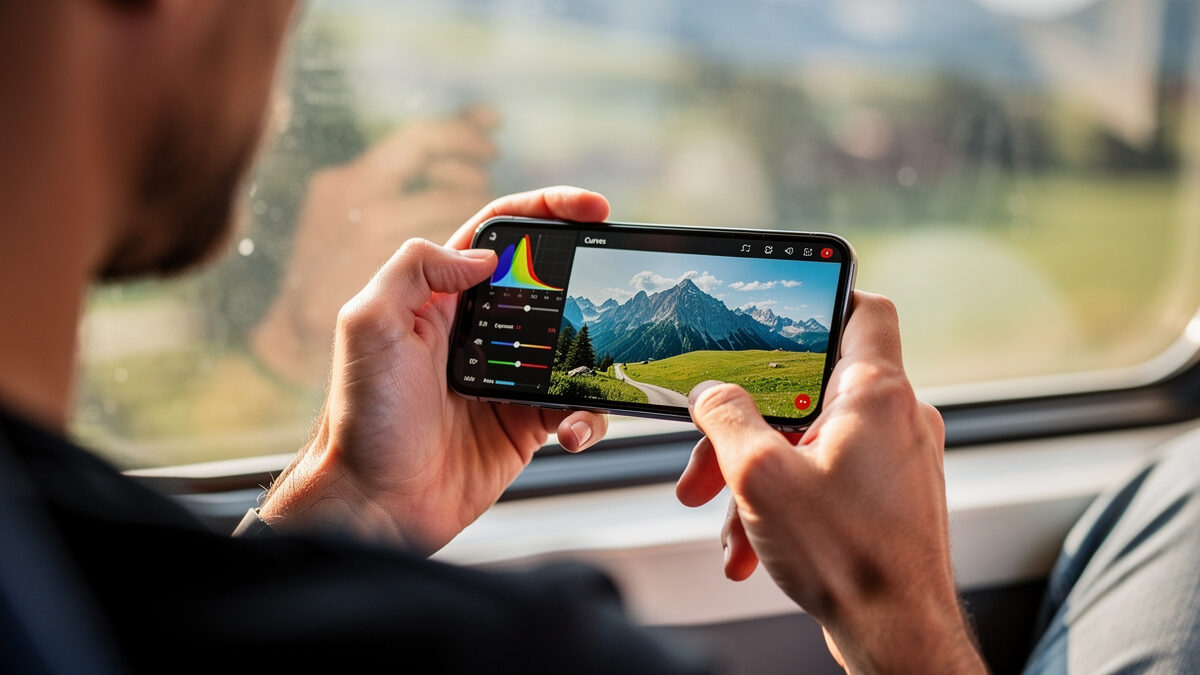
Mobile photo editing is no longer a toy. Apps like Lightroom Mobile and Snapseed open RAW files from real cameras and give you genuine curves, masking, white balance, and color tools on a screen you can edit on a train. The catch is the screen itself — a phone panel is small, uncalibrated, and usually too bright — so a phone edit is a strong first draft that needs a sanity check before anything goes to print.
I use the phone for triage and rough edits in the field, then finish on the calibrated monitor at home. For travel and social-only work, a phone is genuinely enough; for a frame headed to a 24-inch print, it is the rough cut. This guide covers what mobile editing does well, where it falls short, and how I fit it into a workflow alongside the desktop. It is the on-the-go branch of my full photo editing workflow guide, and the tools mirror the desktop steps in my Lightroom for beginners walkthrough.
The mobile editing field has matured into a few genuinely capable tools. Lightroom Mobile syncs with the desktop catalog and offers the same Basic panel, curves, HSL, and masking on a phone — the closest thing to a real develop module in your pocket. Snapseed is free, powerful, and excellent for quick selective edits with its control-point system. Both open RAW files from most cameras, which is the line between real editing and a filter app.
The honest distinction is between apps that edit RAW with real tools and apps that just slap presets on JPEGs. The former let you do actual develop work — recover highlights, set white balance, mask a sky; the latter are for fast social posts and nothing more. I keep Lightroom Mobile and Snapseed on my phone and ignore the filter-heavy social apps entirely. If an app cannot open a RAW and adjust exposure properly, it is not an editing tool, it is a sticker.
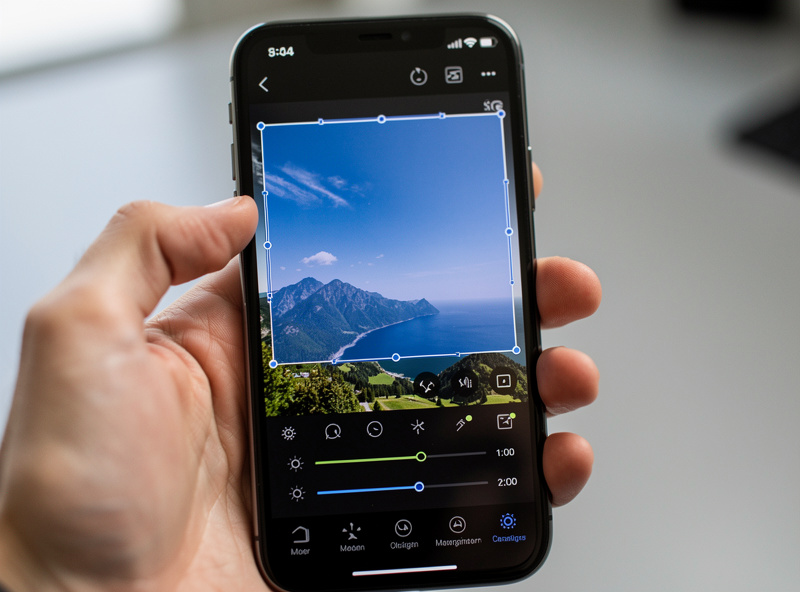
Mobile shines at speed and convenience. Global adjustments — exposure, white balance, contrast, highlight and shadow recovery — all work exactly as they do on desktop, and a touchscreen is genuinely pleasant for some tasks like dragging a tone curve or placing a radial mask. For a quick edit to send a client a same-day preview, or to post a travel shot from the road, the phone is faster than booting a laptop.
The masking has improved enormously too. Auto sky and subject selection that used to need a desktop now runs on the phone, so darkening a bright sky or brightening a backlit subject is a few taps. For the 80 percent of an edit that is global develop work plus one or two masks, mobile is fully capable. I have finished perfectly good travel and social images entirely on the phone and never touched the desktop — for that use, it is the whole workflow, not a compromise.
The screen is the fundamental limit. A phone display is small, almost never calibrated, and typically set far too bright, so colors and exposure decisions made on it are unreliable relative to a proper monitor. An edit that looks balanced on a bright phone outdoors often looks dark and muddy on a calibrated screen indoors. You are editing through a window that distorts what you see.
Precision is the other limit. Fine retouching, careful local dodge-and-burn, and detailed masking are fiddly on a small touchscreen in a way they are not with a mouse or pen on a big display. And output control is thinner — print-grade export with proper color space and output sharpening is a desktop strength. None of this makes mobile useless; it makes mobile a first-draft and field tool rather than a final-output one for serious work.
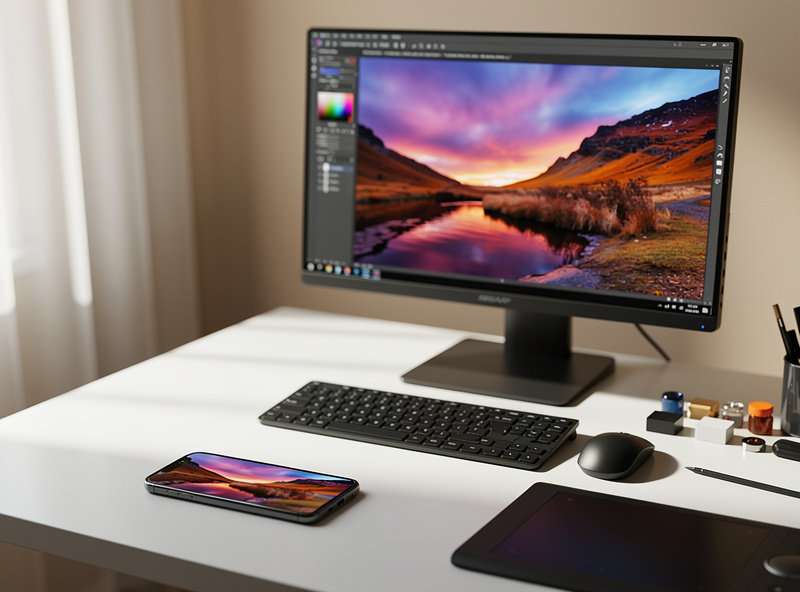
The smart move is not phone-versus-desktop but phone-and-desktop. I use the phone for the front of the workflow — importing to Lightroom Mobile in the field, flagging keepers, dropping a rough global edit so a client sees a same-day proof — and because it syncs, those edits and flags are waiting on the desktop when I get home. Nothing is wasted; the phone work becomes the starting point for the finish.
For social and travel, the phone is often the entire pipeline and I never open the laptop. For anything print-bound or client-final, the phone is the rough cut and the calibrated desktop is where I make the real color and output decisions. Knowing which job you are doing is the whole skill: do not agonize over color on a phone for a print, and do not boot a laptop to post a quick travel shot. Match the tool to the destination.
| Task | Phone | Desktop |
|---|---|---|
| Field triage and flagging | Excellent | Slower |
| Global develop (exposure, WB) | Very good | Excellent |
| Quick masking (sky, subject) | Good | Excellent |
| Fine retouching and dodge/burn | Fiddly | Excellent |
| Accurate color decisions | Unreliable (uncalibrated) | Excellent (calibrated) |
| Print-grade export and sharpening | Limited | Excellent |
A few habits make phone edits more trustworthy. Turn the screen brightness to a fixed middle setting rather than auto, so you are not editing against a display that changes with the ambient light. Edit indoors out of direct sun when you can, because a phone screen in sunlight fools you into making everything too dark. And shoot RAW on the phone or transfer the camera RAW, so you have real latitude rather than a baked JPEG.
Most importantly, build in the habit of a desktop check for anything that matters. A phone edit that you also confirm on a calibrated monitor gives you the best of both — the speed of mobile and the accuracy of the desktop. Treat the phone as the first honest draft, not the final word, and it earns a permanent place in the workflow rather than being a guilty shortcut.
One trick I rely on: edit a little flatter than feels right on the phone. Because the phone screen is bright, you instinctively pull the image darker and more contrasty than it needs, and that over-correction shows up as muddy shadows on a proper display. Leaving a touch more headroom in the phone edit means the desktop check usually needs only small tweaks rather than a rescue. Over time you learn how your specific phone lies — mine runs warm and bright — and you compensate automatically, which is the closest a phone gets to being calibrated.
For web and social, yes. Apps like Lightroom Mobile and Snapseed edit RAW with real curves, white balance, and masking. The limit is the uncalibrated phone screen, so print-bound work should be checked on a calibrated monitor.
Lightroom Mobile for a full develop workflow that syncs with the desktop, and Snapseed for fast free selective edits. Both open camera RAW files. Filter-only social apps that cannot adjust exposure properly are not real editing tools.
Because phone screens are uncalibrated and usually too bright. An edit that looks balanced on a bright phone often looks dark and muddy on a calibrated monitor. Always check important edits on a proper display before exporting.
For the final color and output decisions, no, mainly because of the uncalibrated screen and limited output sharpening. Use the phone as a strong first draft, then finish print-bound images on a calibrated desktop.
Yes, when you can. Shooting RAW on the phone or transferring the camera RAW gives real editing latitude to recover highlights and set white balance. Editing a baked JPEG on mobile gives you far less room before quality breaks down.
Lightroom for beginners comes down to one screen: the Develop module. Import your photos, cull…
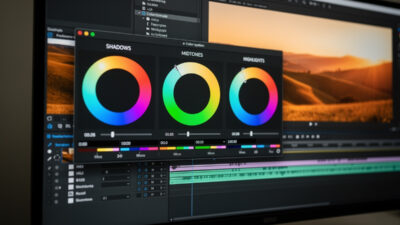
Color grading is the creative stage where you shape an image’s mood through color —…
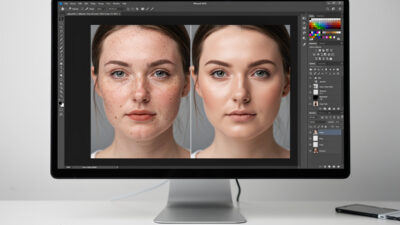
Natural portrait retouching means cleaning up distractions while keeping the person looking like themselves —…
Leave a Reply